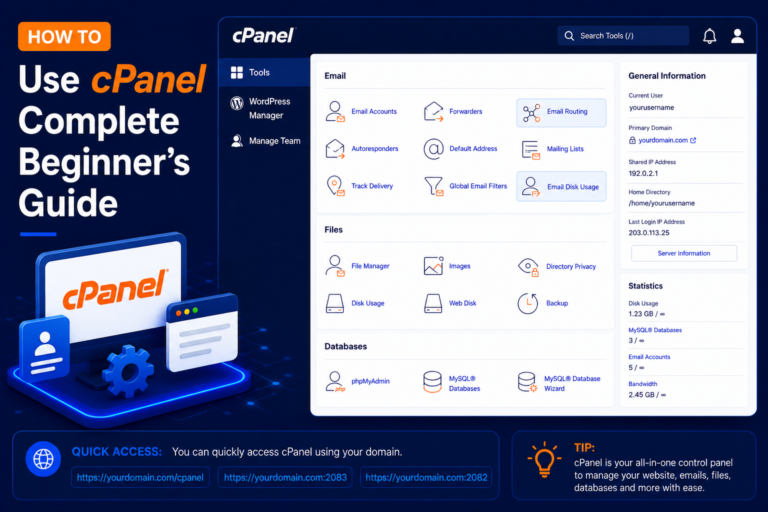
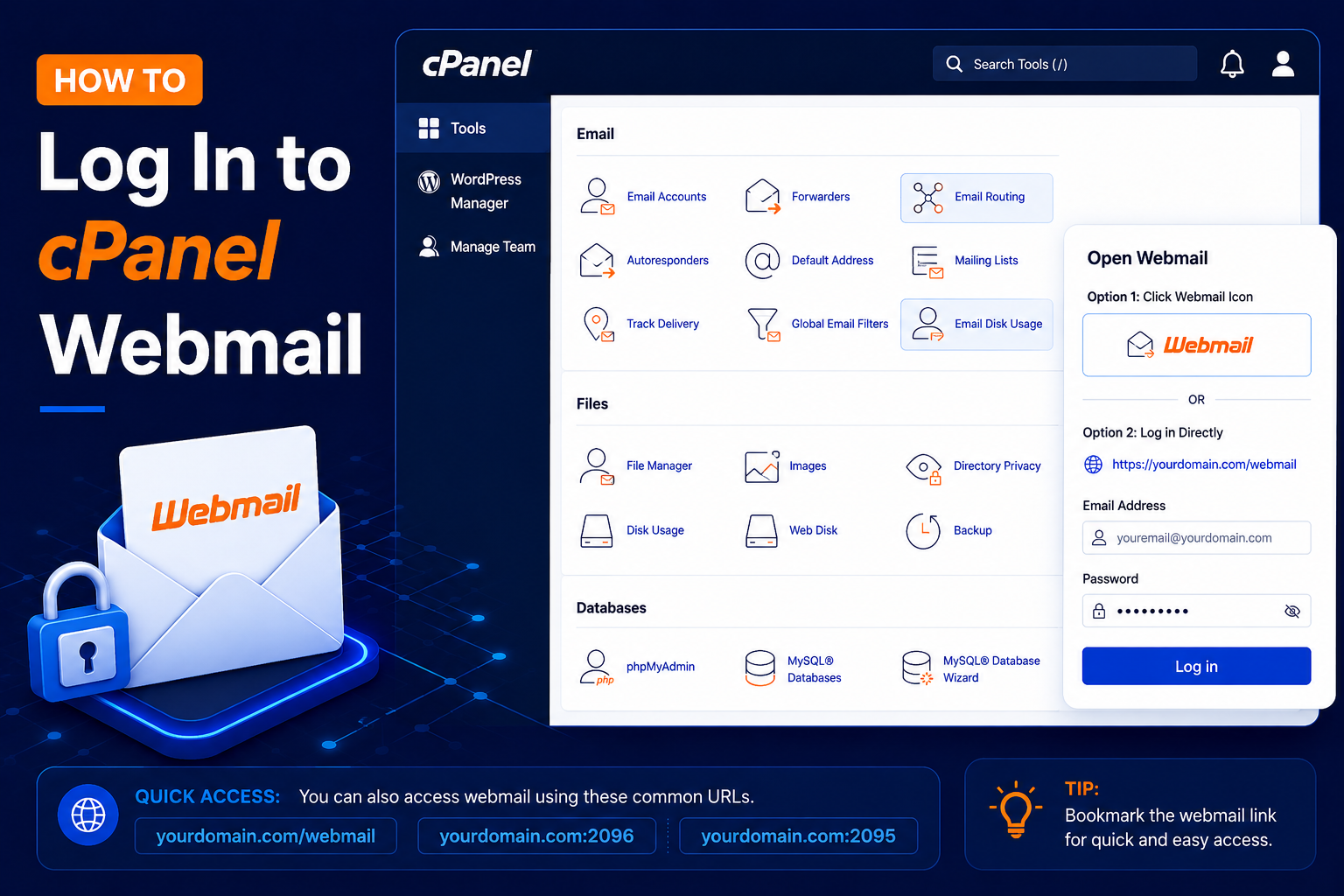
How to Log In to cPanel Webmail
cPanel Webmail allows you to send, receive, and manage emails directly from your web browser without installing an email application such as Outlook or Thunderbird.
- For example, if you have created: support@yourdomain.com
- you can access the mailbox through cPanel Webmail.
- In this guide, you’ll learn how to log in to cPanel Webmail step by step.
Step 1: Open the Webmail Login Page
- Open your web browser and enter: https://yourdomain.com/webmail
- You can also use the secure Webmail port: https://yourdomain.com:2096
- Replace yourdomain.com with your actual domain name.
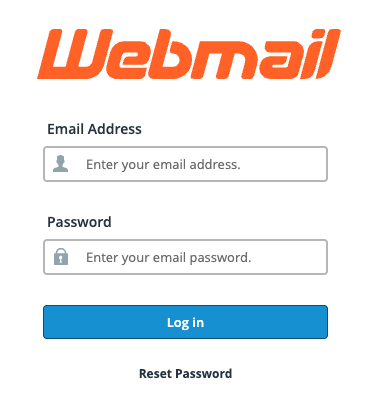
Step 2: Enter Your Email Address
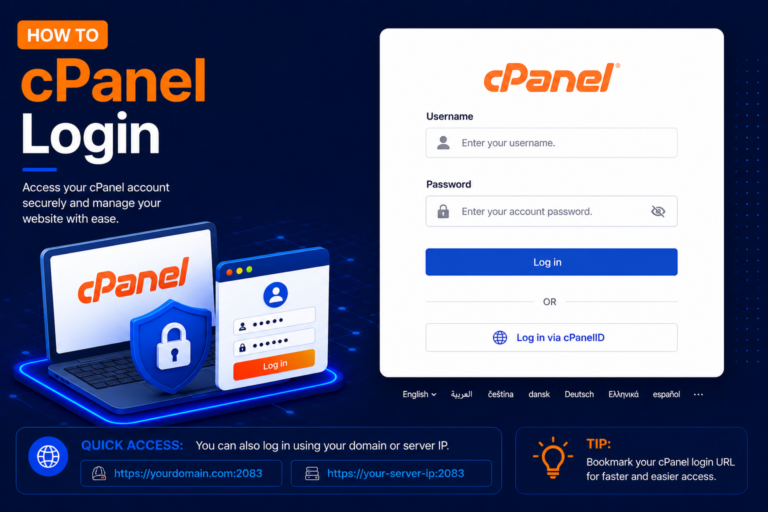
- On the Webmail login page, enter your complete email address.
- Make sure you enter the full email address, including the domain name.
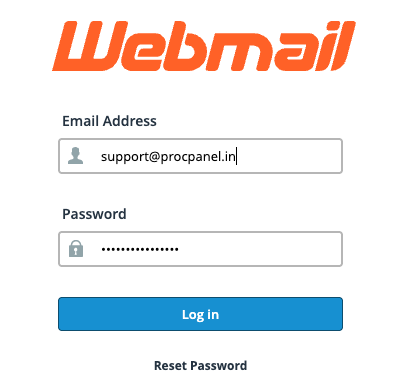
Step 3: Enter Your Email Password
- Enter the password that was created for your email account.
- This is your email account password, which may be different from your cPanel account password.
- Click Log in
- If the credentials are correct, cPanel will open your Webmail account.
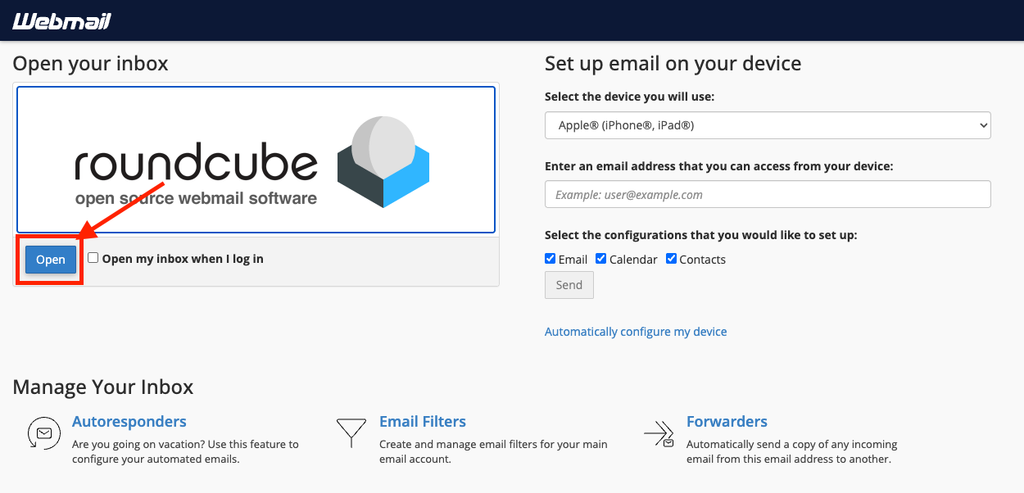
After clicking Check Email, cPanel will take you to the Webmail interface.
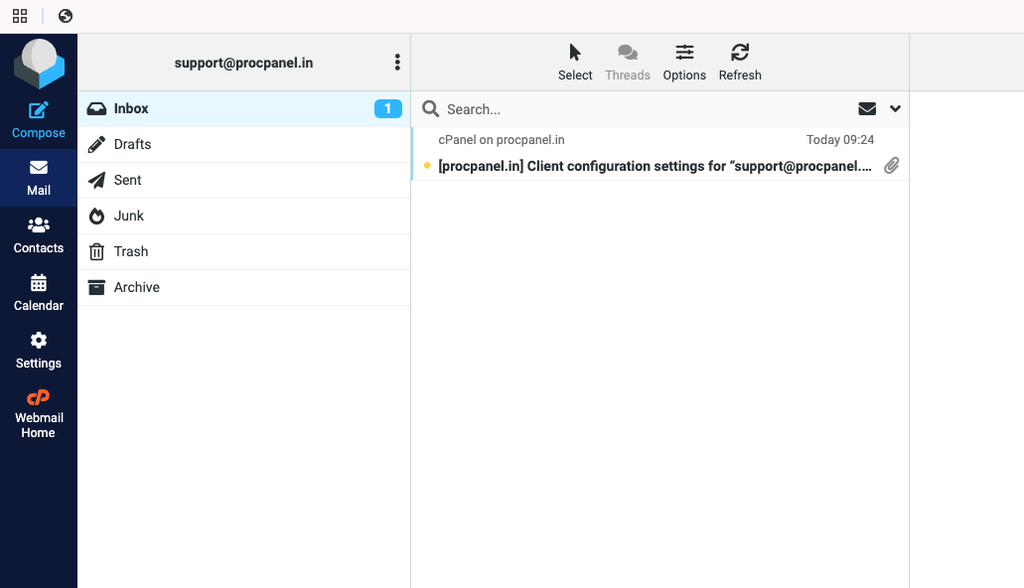
Open Roundcube if required.
- You can now access the mailbox without manually entering the email account password when accessing it through an authenticated cPanel session.