How to Create a MySQL Database in cPanel
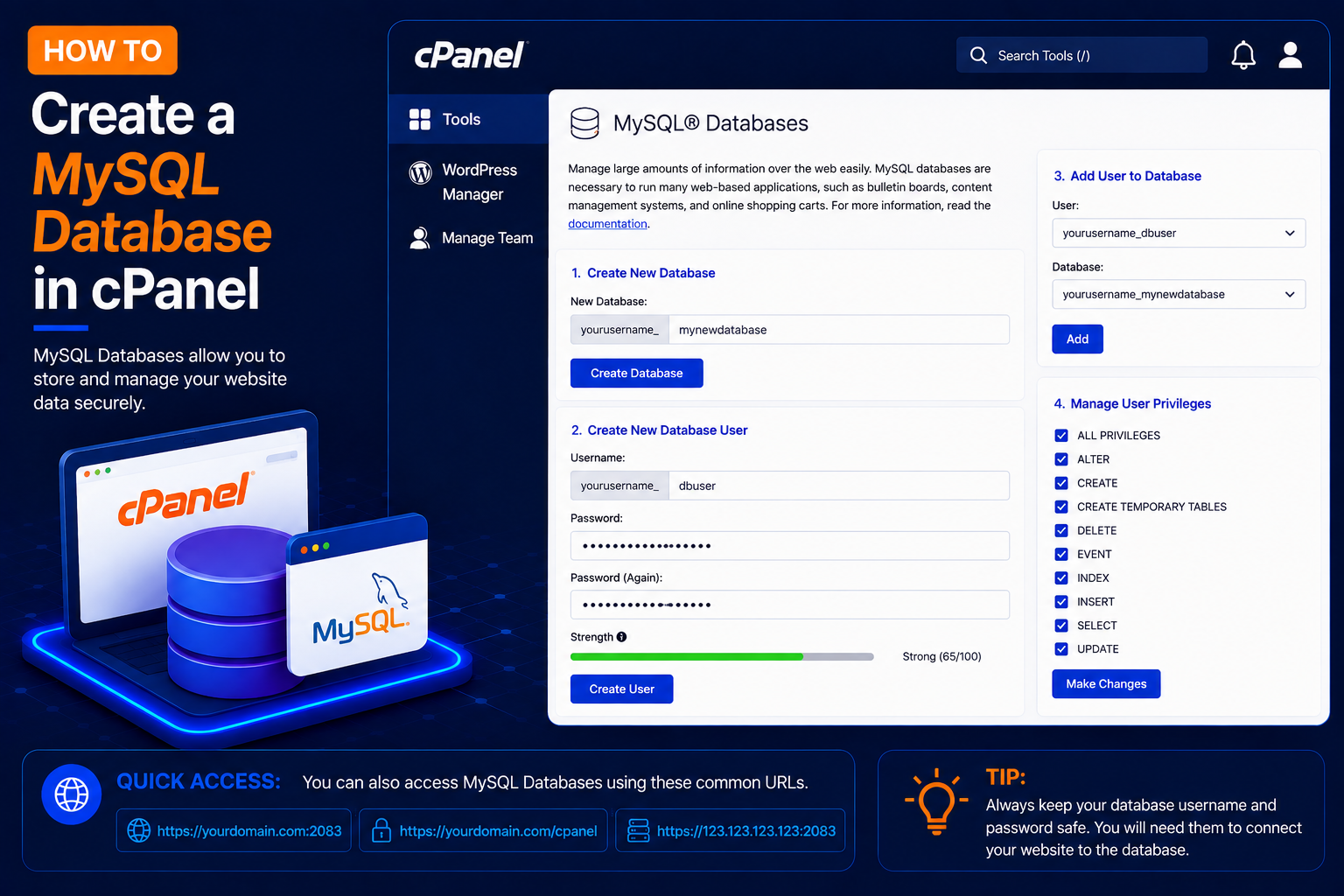
A MySQL database is used to store and manage website data. Applications such as WordPress, Joomla, and many PHP-based websites use MySQL databases to store posts, users, settings, and other information.
Step 1: Login to cPanel
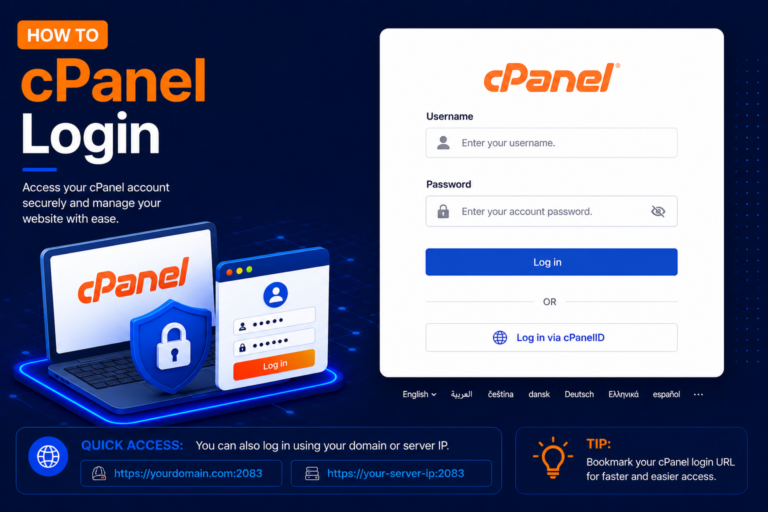
- Open your cPanel login page
- Enter your cPanel Username and Password, then click Log in.
Step 2: Open MySQL Databases
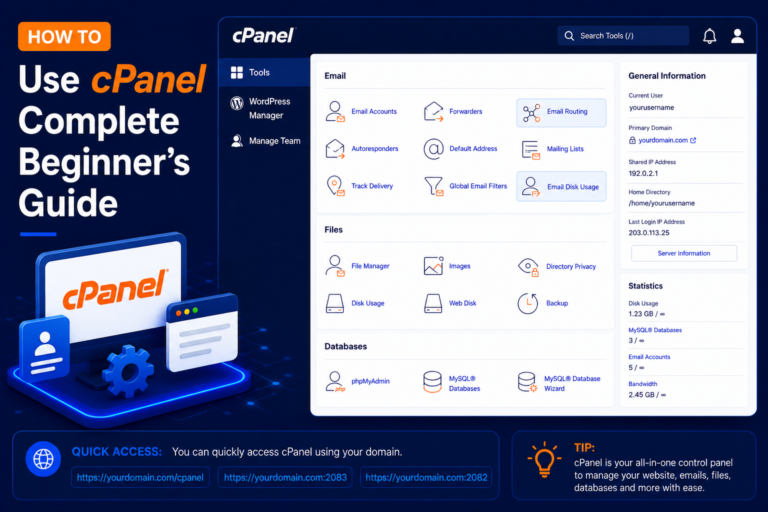
- After logging in to cPanel, locate the Databases section.
- Depending on your cPanel version, look for:
MySQL® Databases
or:
Manage My Databases - Click the available database management option.
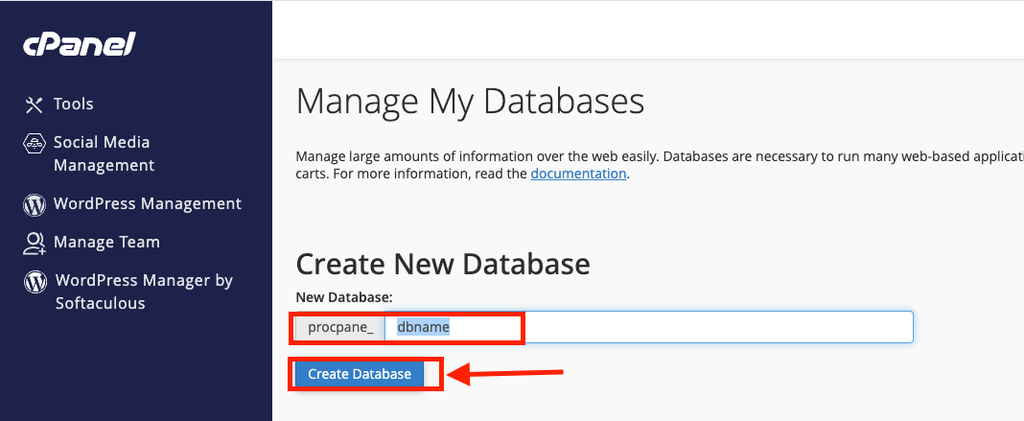
Step 3: Create a New Database
- Find the Create New Database section.
- Enter a name for your database.
For example:
dbname - Your complete database name may include your cPanel account username as a prefix.
For example:
dbname - Click Create Database
Step 4: Confirm the Database Was Created
- After clicking Create Database, cPanel should display a success message.
- Return to the database management page.
- Your newly created database should now appear in the list of existing databases.
How to Create a MySQL Database User
Creating the database alone isn’t enough for most websites. You normally also need a database user with permission to access it.
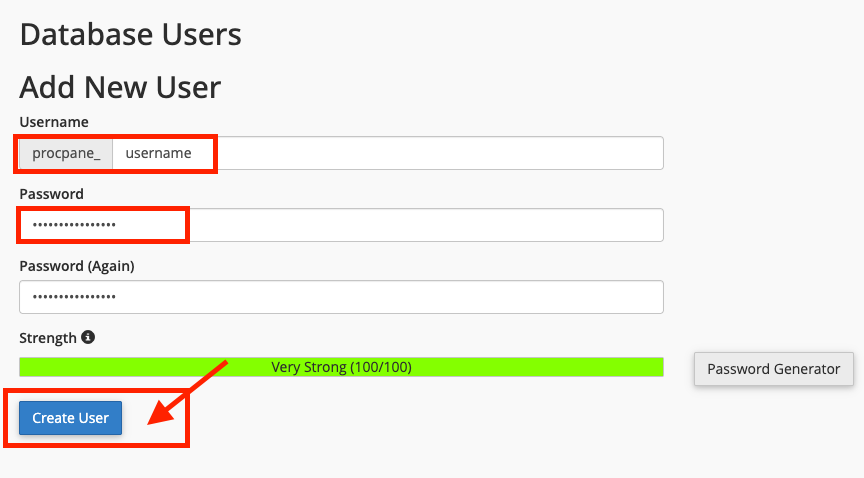
Step 5: Create a New Database User
- Find the MySQL Users or Add New User section.
- Enter a username.
- For example: username
- Your complete database username may look like:
- cpanel_username
Create a strong password.
- Uppercase letters
- Lowercase letters
- Numbers
- Special characters
Then click: Create User
How to Add the User to the Database
Step 6: Select the User and Database
- Find the section:
- Add User To Database
- For example: cpaneluser_wpuser
- Then select your database: cpaneluser_wordpress
- Click: Add
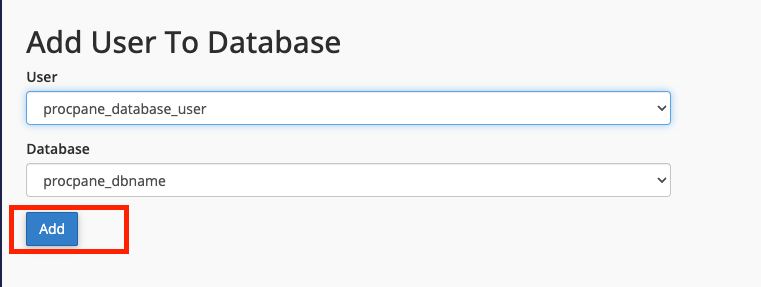
Step 7: Assign Database Privileges
- After adding the user, cPanel will display the available database privileges.
- For a website that requires full database access, you may need to select
- ALL PRIVILEGES
- Then click: Make Changes
- Only grant the privileges required by the application you’re configuring.
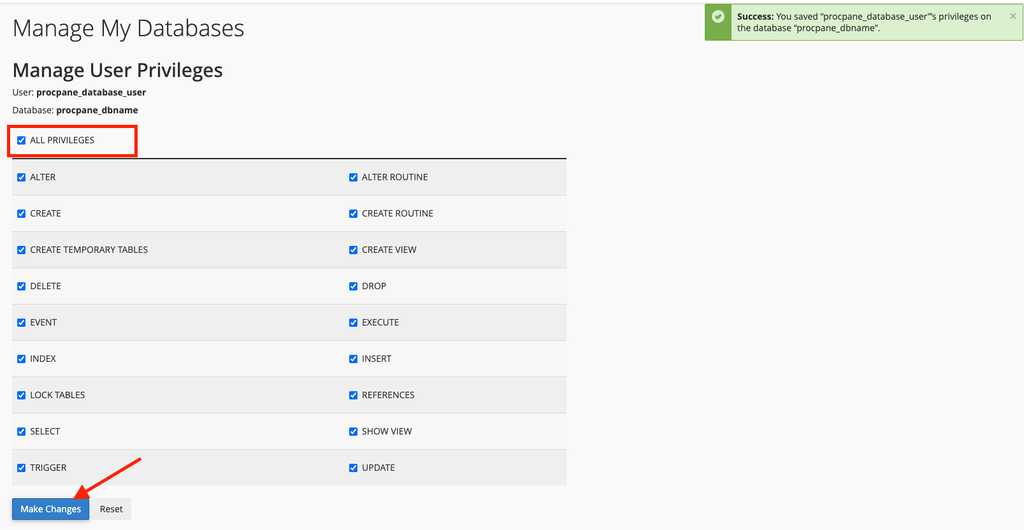
Step 8: Note Your Database Details
- Your website or application will normally require four database details:
- Database Name: dbname
- Database Username: cpanel_username
- Database Password: The password you created
- Database Host: localhost
On many standard cPanel hosting environments, the database host is localhost, but you should use the hostname specified by your hosting provider if it is different.