
How to Create an Email Account in cPanel
Creating a professional email account with your domain name helps make your business look more professional.
- For example, instead of using: yourbusiness@gmail.com
- you can create:
- info@yourdomain.com
- support@yourdomain.com
- sales@yourdomain.com
In this tutorial, you’ll learn how to create an email account in cPanel step by step.
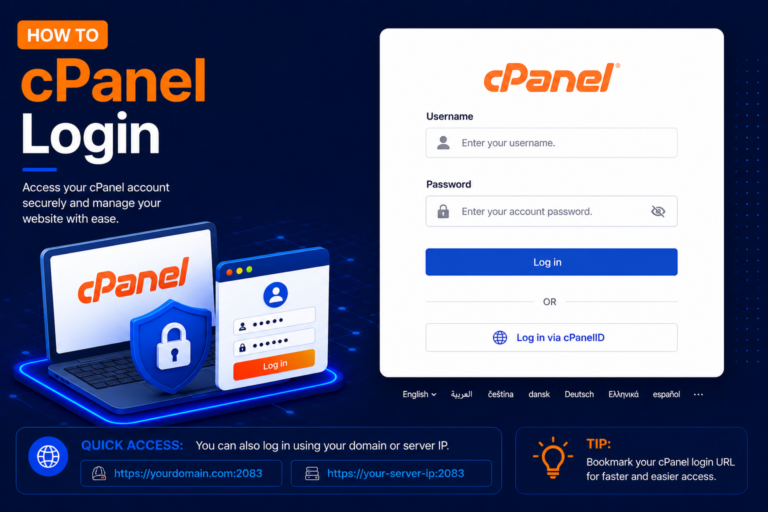
Step 1: Login to cPanel
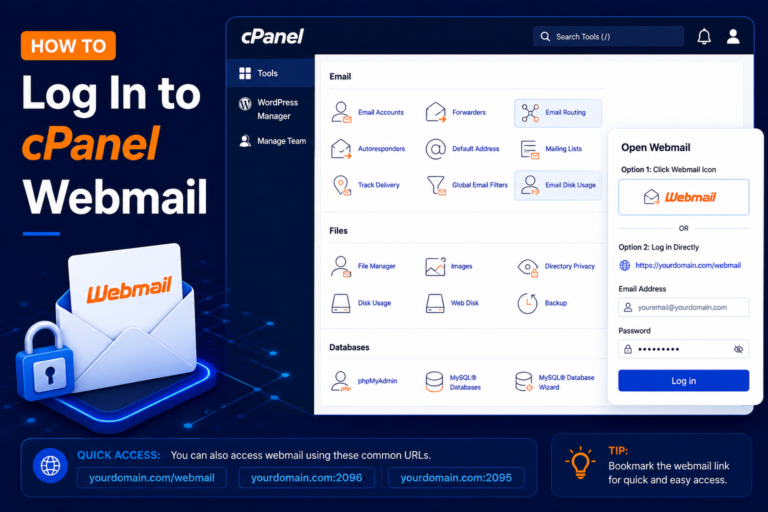
- After logging in to cPanel, scroll down to the Email section.
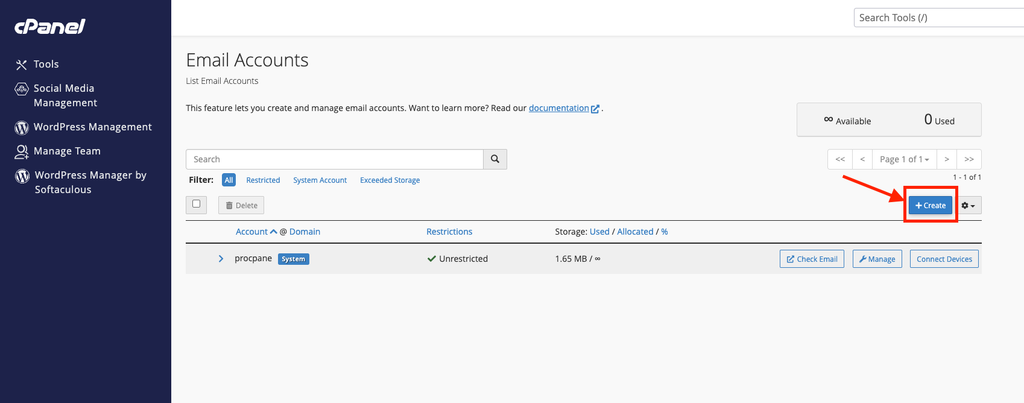
- Find and click: Email Accounts
- You can also use the cPanel search bar and search for Email Accounts.
- Click the Create button to create a new email address.
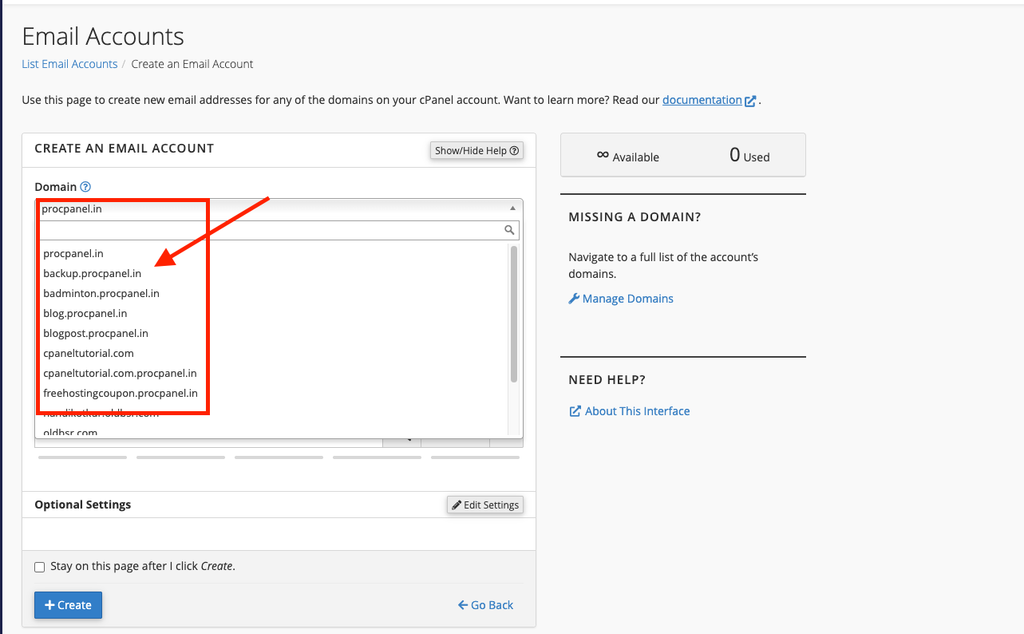
If you have multiple domains in your cPanel account, select the domain for which you want to create the email address.
Step 2: Enter the Username
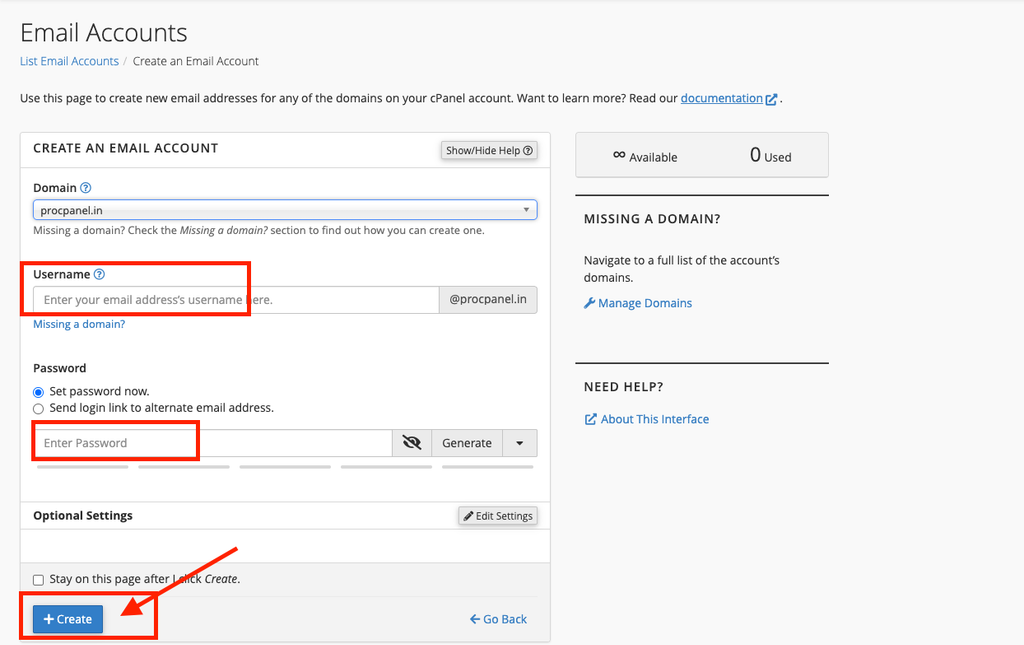
3. Enter the username you want to use for your email account.
- For example, enter:- support
- Your complete email address will become: support@yourdomain.com
- You can create email addresses such as:
- info@yourdomain.com
- support@yourdomain.com
- sales@yourdomain.com
- info@yourdomain.com
- support@yourdomain.com
- sales@yourdomain.com
- contact@yourdomain.com
Step3 : Create a Strong Password
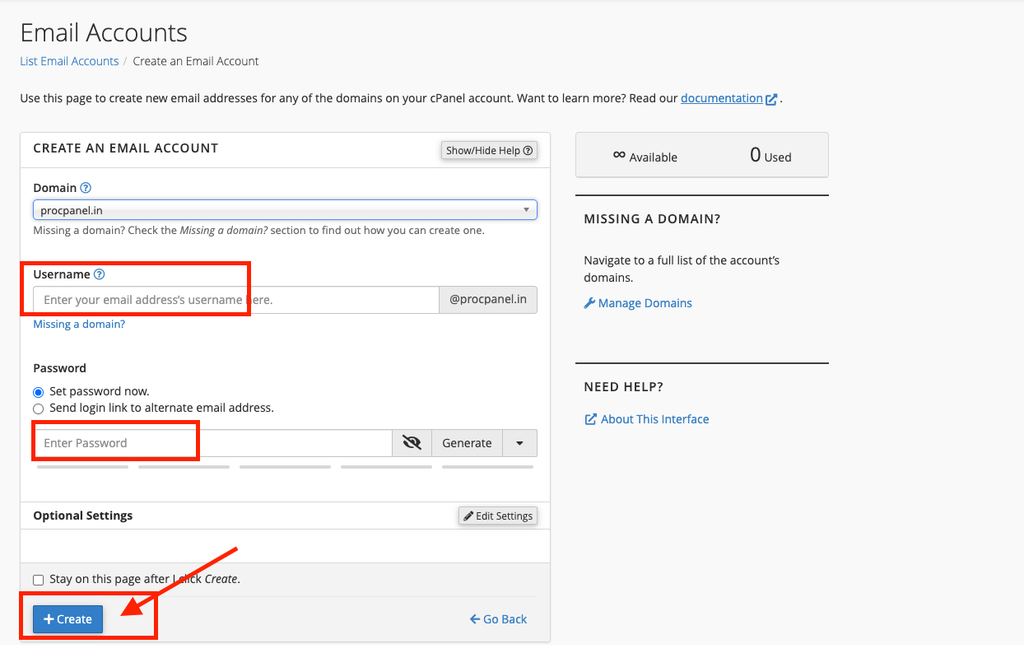
4. Enter a strong password for your new email account.
Use a combination of:
- Uppercase letters
- Lowercase letters
- Numbers
- Special characters
Step4 : Click Create
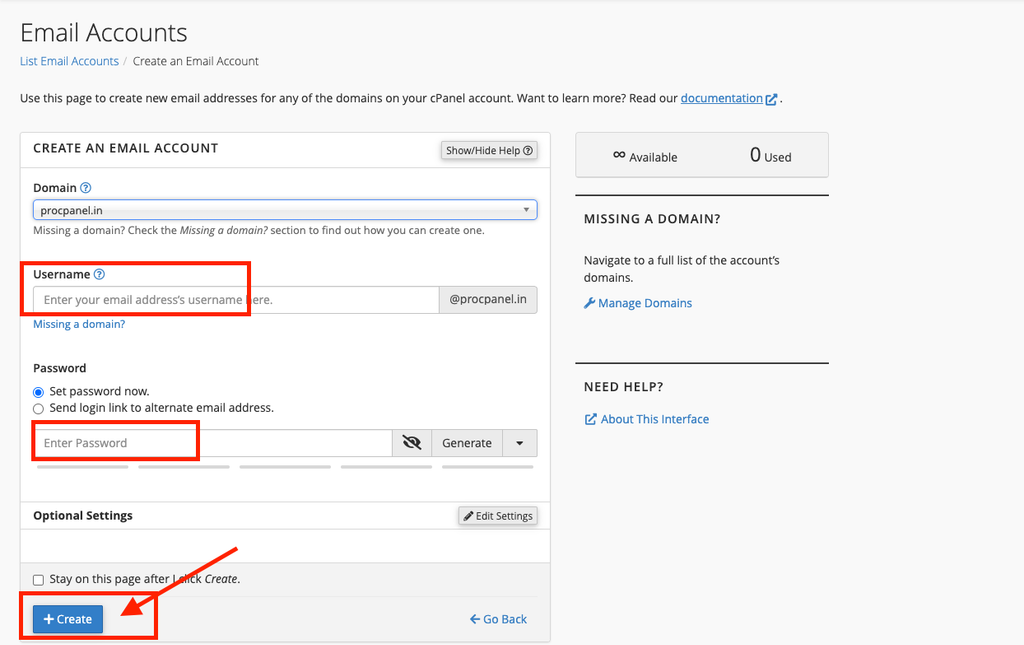
5. Click the Create button.
cPanel will create your new professional email account.