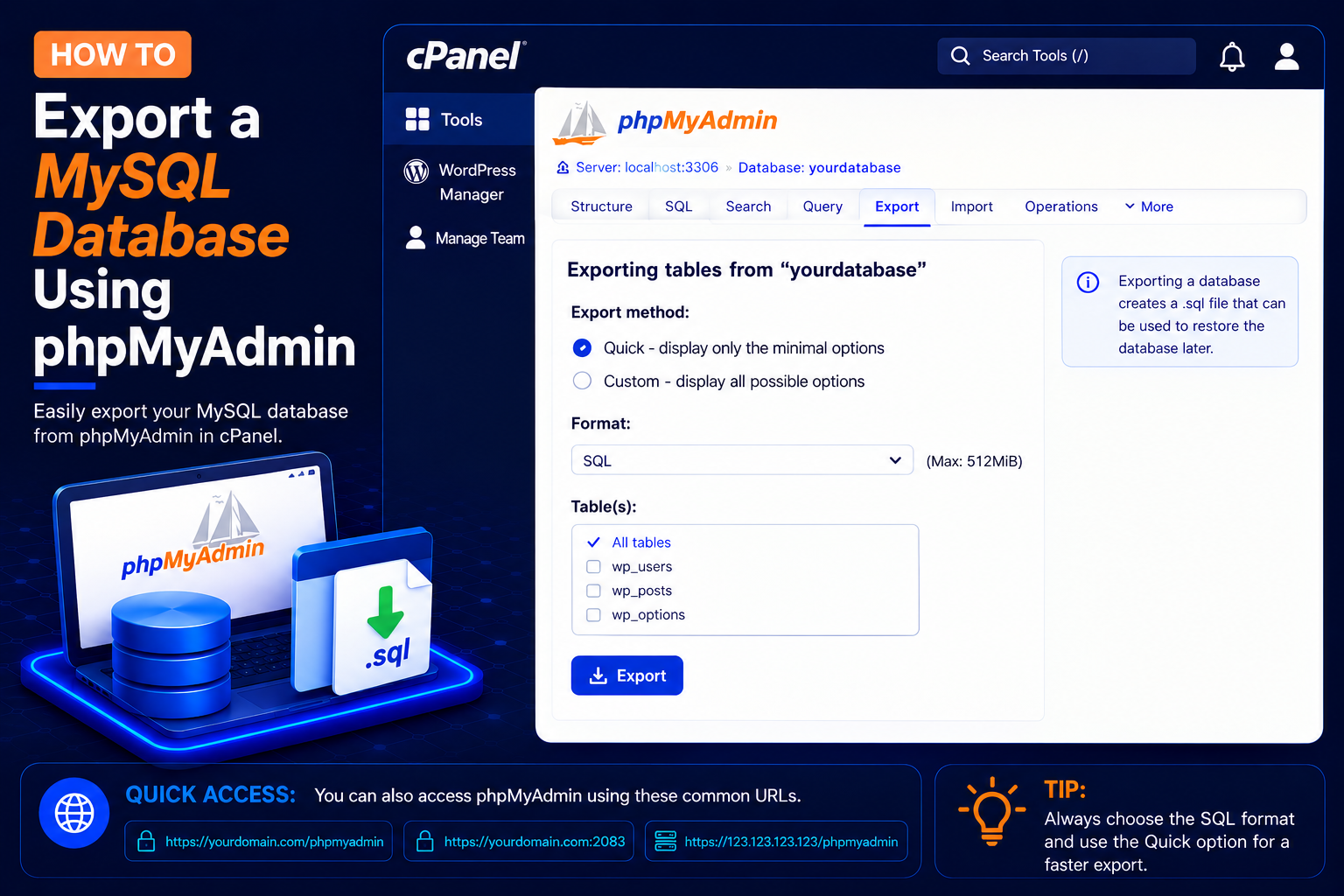
How to Export a MySQL Database Using phpMyAdmin
Exporting your MySQL database is an important part of creating a website backup. Using phpMyAdmin in cPanel, you can download a copy of your database to your computer as an SQL file.
Database backups are useful before website migrations, WordPress updates, plugin changes, or other major modifications.
What Do You Need?
Before starting, make sure you have:
- Access to your cPanel account
- An existing MySQL database
- Access to phpMyAdmin
- Enough storage space on your computer for the database backup
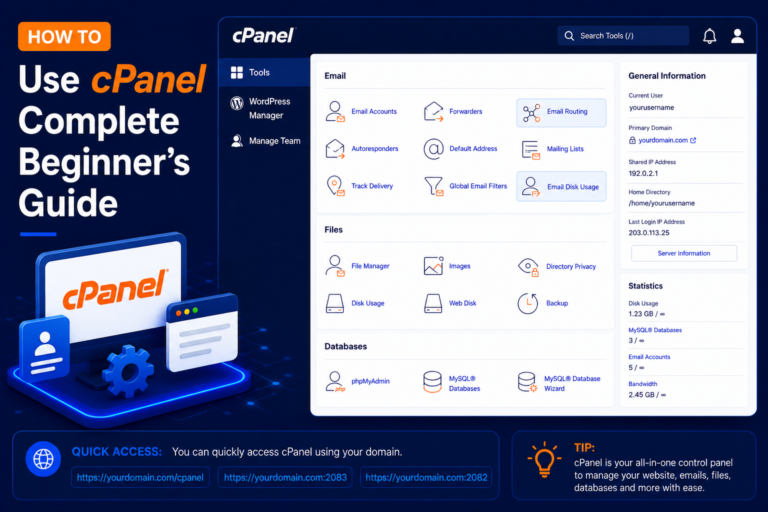
Step 1: Login to cPanel
- Enter your cPanel Username and Password, then click Log in.
Step 2: Open phpMyAdmin
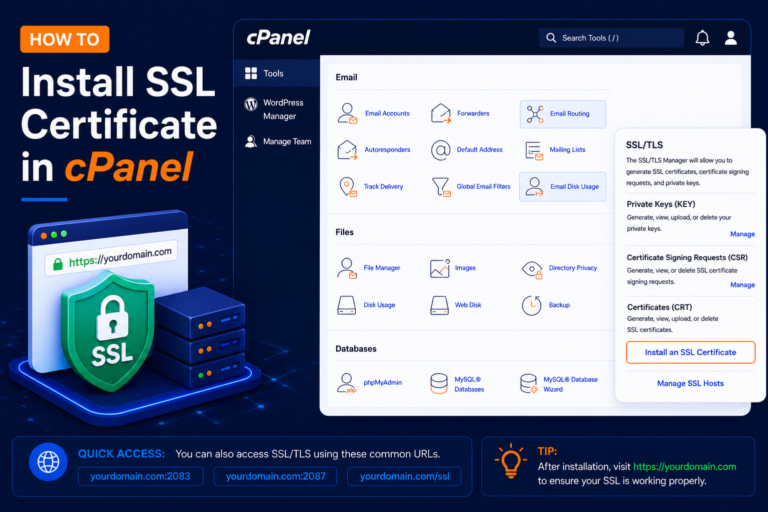
- After logging in to cPanel, locate the Databases section.
- Click: phpMyAdmin
- phpMyAdmin will open in a new page or browser tab.
Step 3: Select Your Database
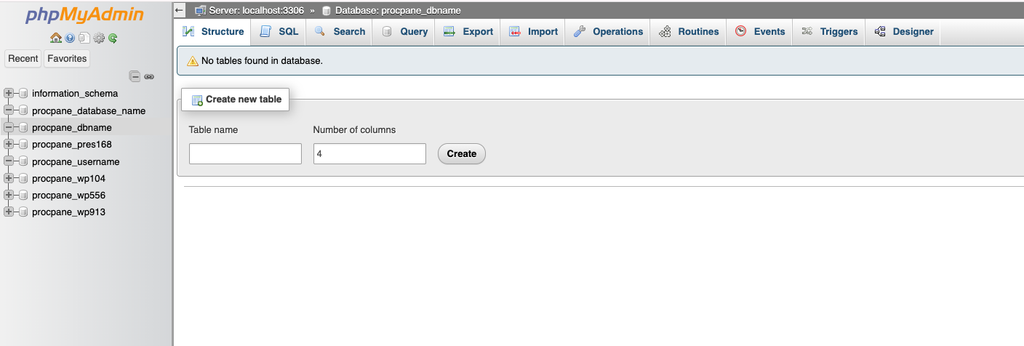
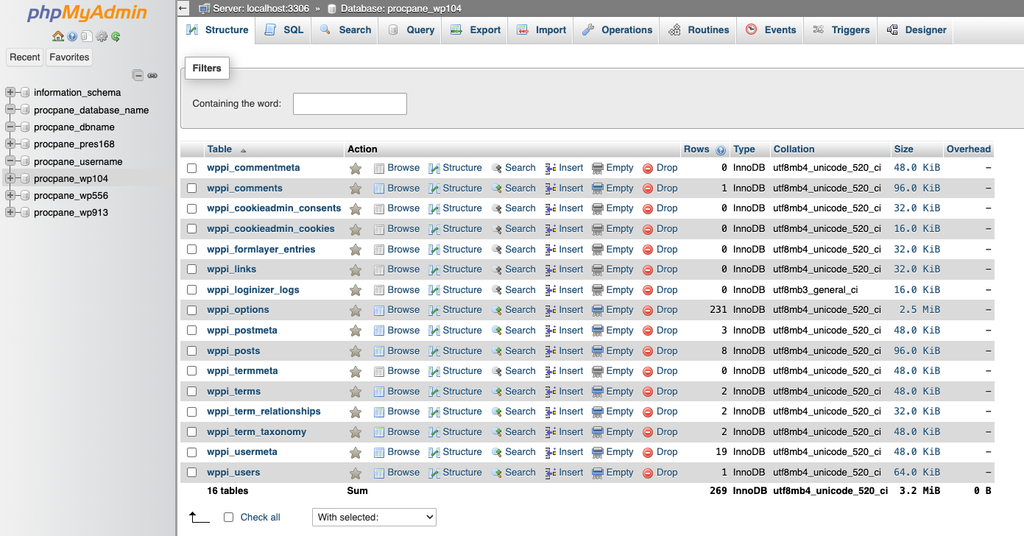
- Inside phpMyAdmin, you will see the available databases on the left side.
- Click the database you want to export.
- For example: cpanel_username
- After selecting the database, its tables should appear.
- Make sure you select the correct database before creating your backup.
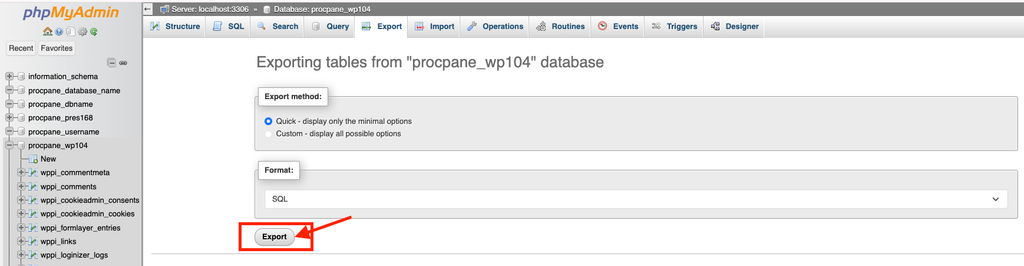
Step 4: Click the Export Tab
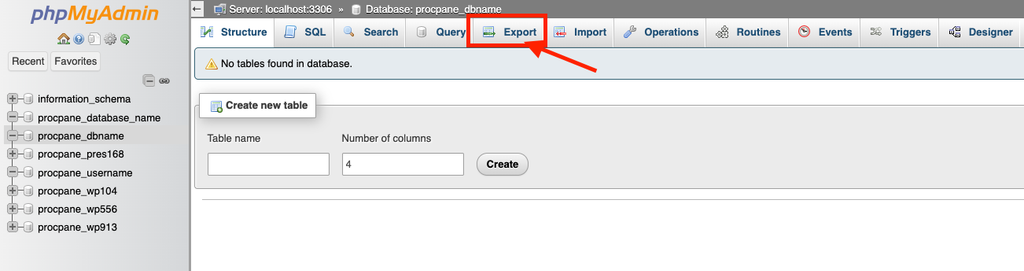
- After selecting the database, look at the navigation menu at the top of phpMyAdmin.
- Click: Export
- The database export options will appear.
Step 5: Click Export
- After selecting Quick and SQL, click: Export
- Depending on your phpMyAdmin version, the button may instead appear as Go.
- Your browser should begin downloading the database backup.
- The downloaded file will usually have a name similar to:
- cpanel_user